

In 2026, video editing is no longer crucial to only movie production houses but to businesses, educators, and creators as well. Video quality and speed are essentials to building any business, particularly when you have a startup, a marketing team, or a brand of your own. Artificial Intelligence (AI) is the driving force behind this change by transforming video editing into an entertaining tool using minimal efforts and producing high quality results. AI does the hard work focusing your lengthy presentation into brief social media manipulations or converting tutorials into the language of a worldwide audience in seconds.
This is supported by the figures. Now, seven out of ten video editing tools have AI features, which accelerate the creation of videos, enabling companies to cut costs and time investment. Meanwhile, the industry known as the creator economy which will be highly reliant on these tools is estimated to expand to 480 billion dollars in the year 2027. The issue of selecting the appropriate software is no longer about being a pro or beginner, but rather finding the tool that can enable you to work smarter and quicker.
This blog is your guide to the best 15 video editing software products serving to align the product of the right tool with your business or creative target.
Comparison Table: Most Popular Video Editing Software:
| Software Name | Platform | Pricing Model | Free Trial Availability |
| Adobe Premiere Pro | Windows, Mac | Subscription | Yes (7 days) |
| DaVinci Resolve 20 | Windows, Mac, Linux | Free / One-time | Yes (Free version available) |
| Final Cut Pro 11 | Mac, iPad | One-time | Yes (90 days) |
| CyberLink PowerDirector | Windows, Mac | Subscription / One-time | Yes (30 days) |
| CapCut | Mobile, Web, Windows, Mac | Free / Subscription | Yes (Free version available) |
| Wondershare Filmora | Windows, Mac, Mobile | Subscription / One-time | Yes (Watermarked export) |
| Pictory | Web-based | Subscription | Yes (Limited free projects) |
| LumaFusion | iOS, Android | One-time | No |
| HitFilm | Windows, Mac | Free / Subscription | Yes (Free version available) |
| OpusClip | Web-based | Subscription | Yes (Free trial credits) |
| Adobe Premiere Elements | Windows, Mac | One-time | Yes (30 days) |
| Shotcut | Windows, Mac, Linux | Free | Yes (Always free) |
| InShot | Mobile (iOS, Android) | Free / Subscription | Yes (Free version with ads) |
| Descript | Windows, Mac, Web | Subscription | Yes (Free tier available) |
| Microsoft Clipchamp | Web, Windows | Free / Subscription | Yes (Free version available) |
How to Choose the Right Video Editing Software?
Choosing the video editing software that fits your needs is subjective since there are dozens of software to be considered the best. You should consider your needs within three criteria, namely Skill & Learning, Content Type, and Hardware to determine the pick.
1. Skill & Learning
- Beginner: If you have never edited a video, there is no need to use over-complicated products such as the DaVinci Resolve. It is better to use the applications with features made for ease of use. Such as magnetic timelines, or drag & drop, like Filmora and CapCut. These tools deal with the technical side, such as audio syncing, and producing results that are able to concentrate on the story.
- Intermediate: In the similar manner to the beginners’ level, one must know the tools of cutting, transitions and keyframing to find out the one that allows you to expand such as PowerDirector or Final Cut Pro.
- Advanced: Professionals require the ability to work with each pixel. Adobe’s Premiere Pro allows you to make adjustments on codec, bit rates, as well as audio frequencies, which entry-level instruments conceal. These are the editors employed for posts like the cinematics editor.
2. Content Type
- Vertical Videos (Shorts/Reels): When you make 90% of the content that fits on a phone screen, then find software with Auto reframe & audio syncing. Tools like CapCut and OpusClip are the go-to for these.
- YouTube/ Documentary: Such content has long durations and one would need a strong timeline capable of running thousands of clips without any malfunctioning. The reason why Abode’s Premiere Pro and Final Cut Pro are industry standards is because they are built solely to target these content creators/ editors.
- Dialogue Heavy Clips (Podcasts): One of the biggest hassle is checking hours of scrubbing through waveforms. The popular feature of “Find Text” editing in Descript is the best solution for this.
3. Hardware
- Low-End PCs: Most video editors require high resources to work fluently. On a low-end computer, you can use cloud-based editors, such as Clipchamp, or lightweight editors, such as Shotcut. These software are designed to help small and budget-tight editors to work with the best options.
- Mac Friendly: Final Cut Pro runs exponentially faster than any other software on a Mac with an M3 or M4 chip. Its software is developed to make editing more convenient for Mac users.
Free v/s Paid Video Editing Software: Which One Should You Choose?
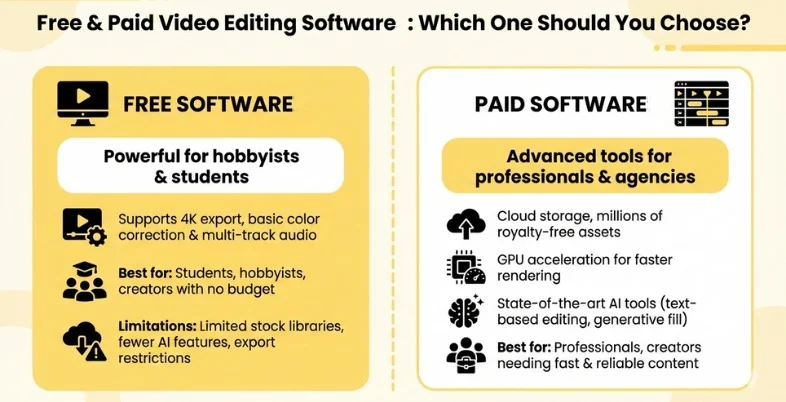
The distinction between the Free and Paid software has been reduced greatly and there still exist huge distinctions that will make or break the deal for you.
Free Software
Free software are very powerful nowadays. DaVinci Resolve’s Free Version is stronger than software that were being sold 5 years ago. Free tools are compelling to most users out of which 80 percent are hobbyists, students, and content creators. They can deal with exports upto 4K resolution, simple color correction and with multi-track audio as well which are the three key features for local editors.
Best For: Students, hobbyists, and creators with no budget.
Limitations: Editing is usually restricted on the quality of the exports (e.g. no 4K export in some tools), and the number of stock libraries, and some functions are not as advanced as AI including the ease of implementing these edits (e.g. Magic mask or voice isolation).
Paid Software
Paid Software are designed to outperform every tool that can be used to edit, including the competitors. Sale and Ecosystem are two major targets of the paid software companies so they develop features into the editing software that are worth paying for. Eg- Adobe’s Premiere Pro that targets the biggest community of editors with any sort of content and tools required. Cloud storage (backup), millions of royalty free stock (music/video), and frequent updates using the latest AI tools are typical features included in these subscriptions nowadays.
Best For: Professionals, agencies, and creators desiring fast & reliable final content.
Additional Benefits:
- Support: Customer service is provided in case your project corrupts.
- Hardware Acceleration: Paid versions are frequently enabled with GPU acceleration, i.e. 5 minutes to render a video, not 50. This saves time which is considered the most valuable asset in the video editing community.
- State of The Art AI: Functions such as “Text-Based Editing” or “Generative Fill” are all pay based because the server operating of AI models need significant expense.
List of 15 Best Video Editing Software
1. Adobe Premiere Pro

Adobe premier pro is the evergreen dominant player in the field of professional video production, which is the center of the industry and required for its fine adjustment. There has been a reduction to the entry-level with Adobe Sensei GenAI which automates actions like matching colors and audio mixing. The ecosystem is the greatest benefit of Premiere Pro.
Its Designer feature, the so-called Dynamic Link feature, enables the editors to instantly pull compositions out of After Effects or audio out of Audition without making any in-between files. Premiere Pro is hard to learn and needs a little powerful computer but it offers the most detailed control of each pixel and sound wave. Paint.io is remote collaboration and is now provided as part of Native Frame.io. The workflow called Camera to cloud allows the footage to be uploaded to the timeline at the point of the word cut.
- Ease of Use: Advanced
- Pros: Unmatched ecosystem and third party support of the color, audio, and graphics tool, industry-standard tools.
- Cons: High cost of a monthly subscription; unfriendly learning curve.
- Key Features: Text-based editing, multi-track editing, Remix tool, auto reframe, keyframing, essential graphics panel.
- Professional Features: Lumetri Color grading, Dynamic connection with After Effects, VR/ 360 video editing, advanced audio mixing.
- System Requirements: High end PC is suggested or minimum 8 GB of RAM (16 GB‑32 GB for 4K) with full-fledged GPU, 4+ VRAM.
- Export Options: Unlimited resolution (up to 8K +). Pro res, H.264, H.265 (HEVC), DNxHD, and virtually any professional broadcast format.
- AI Tools & Automation: Yes (Adobe Sensei, Generative Extend, Excite Speech, Text-Based Edificing, Auto Color).
- Updates / Support: Active with monthly updates.
- Cloud Features: Frame.io integration to review & collaborate and Creative Cloud Library Sync.
Pricing:
- Starting Price ₹599.00/mo incl. GST for the annual billed monthly plan.
2. DaVinci Resolve 20
Davinci Resolve 20 is one and all applications that encompasses all the elements; the editing, color grading, Fairlight audio and Fusion visual effects. It is also famous for world quality color grading and it currently provides the majority of the features as freeware.
The free version has 95% of the tools that are found in the Studio version and this is a great value proposal. The Magic Mask is an example of a task performed by the Neural Engine of Resolve, which isolates and tracks a moving object within a few seconds, a task that took previous hours. It is available to colorists and indie filmmakers at no subscription fee and produces Hollywood quality images.
- Ease of Use: Advanced
- Pros: Free version with professional features is amazing; the ability to color grade cannot be matched.
- Cons: Node-based workflow is steeply learning: Hardware requirements are high.
- Key Features: Cut page with rapid editing capacities, Edit page includes a complete feature set, Fairlight audio engine, multi-titling, multi-wide timeframe.
- Professional Features: Node based color grading, Fusion VFX compositor, 3D workspace and HDR grading.
- System Requirements: High / very high; depends a lot on GPU. Minimum Requirements 16GB GB RAM -32GB GB RAM, separate graphic card 8GB VRAM and above 4K.
- Export Options: Studio version limited to 32K, plays all standard formats such as MP4, MOV, EXR, DCP in theatres.
- AI Tools & Automation: Yes (AI Engine Magic Mask, Voice Isolation, Smart Reframe Studio version).
- Updates / Support: Active with occasional updates.
- Cloud Features: Remote collaboration WebEx Blackmagic Cloud.
Pricing:
- DaVinci Resolve: Free
- DaVinci Resolve Studio: ₹29,980
,Also Read: Social Media Analytics Tools
3. Final Cut Pro 11
Final Cut Pro 11 is the flagship video editing software of Apple and is developed by ensuring that the Mac performs optimally. Its Magnetic Timeline creates addictive clips on it, removing syncing problems and black holes. It is high performance because the design is rapid among YouTubers, wedding filmmakers, and event filmmakers who require speedy, high-quality whether they have quality editing.
Final Cut Pro can handle spatial computing editing in the apple vision pro at present. It is the most effective editor of high resolution video, on the Apple silicon (M series processors) it can play multiple streams of 8K Pro-res RAW at full rate without any dropped frames, which on a high end PC would cause even the least responsive workstations to surge.
- Ease of Use: Intermediate
- Pros: One time purchase (no subscription); blazing fast Mac hardware rendering.
- Cons: Mac-exclusive; Magnetic Timeline can create confusion with the conventional editor.
- Key Features: Object tracker, multicam editing, magnetic timeline, support of cinematic mode, basic tools of audio/color.
- Professional Features: 360 VR editing, HDR, Prores RAW workflow, Motion to add more advanced features and work with graphics.
- System Requirements: Optimized to support the Apple Silicon (M1/M2/M3), and 8GB RAM (16GB suggestive if used intensively).
- Export Options: 8K+ support, even support the ProRes, HEVC and direct social media exports.
- AI Tools & Automation: Yes (Magnetic Masking, Smart Conform, Voice Isolation).
- Updates / Support: Moderately active with annual significant updates.
- Cloud Features: Cloud iCloud; Frame.io extension present.
Pricing:
- Free trial available
- Professional Post-Production: ₹29.900 only for Mac
4. CyberLink PowerDirector

The most successful, “prosumer” video editor, is CyberLink PowerDirector which lies between basic consumer applications and professional software. It has the highest rendering engine of Windows and allows designers to produce videos within seconds. The 2026 version has features of AI enhanced tools to enable advanced visual effects with a simplified work replacing space and sky, notice tracking, and Object one can be dropped by a simple drag derailment.
The joint venture, Shutterstock and Getty also have an integrated stock library where millions of high quality video and audio can be accessed free of charge. You can use PowerDirector to create a feature rich workflow even when you have a small business or even when you vlog your adventures, and you do not need to be educated in film school.
- Ease of Use: Intermediate
- Pros: Rapid rendering speed, has access to high-end content (Shutterstock/Getty).
- Cons: Interfaces may be described as messy and to use premium features a subscription is needed.
- Key Features: Timeline editing, screen recorder, transitions, titles, multi-cam designer, motion tracking.
- Professional Features: Mask designers, keyframing, chroma key, AI sky replacement, and 360 degree video editing.
- System Requirements: Medium, New Windows 10/11 optimized to work on middle range and greater CPUs with 8GB RAM and 2GB VRAM.
- Export Options: 4k possible; MP4, AVI and MKV, GIF, social presets.
- AI Tools & Automation: Yes (AI Image Gen, Body Effects, Motion Tracking, Speech Enhancement).
- Updates / Support: Active with occasional updates.
- Cloud Features: CyberLink Cloud storage is included in subscription.
Pricing:
Monthly:
- PowerDirector 365: ₹ 1,999/month
- Director Suite 365: ₹ 2,799/month
Annually:
- PowerDirector 365: ₹ 4,799/year (₹400/month)
- Director Suite 365: ₹ 8,399/year (₹700/month)
5. CapCut

CapCut has grown from being a mobile companion of TikTok into a powerful, multi-platform video editing software that now dominates social media editing. Introduced by ByteDance, its Virality Intelligence integrates trending music, filters, stickers, and transitions aligned with TikTok and Instagram Reels algorithms.
The desktop application allows one to start on the phone and complete the work on the PC. Auto captioning at capCut is the quickest and the most precise one in the market. In the case of vertical creators of video, it eliminates technical obstacles with AI tools that identify hooks and re-formatted clips into mobile displays with Long Video to Shorts.
- Ease of Use: Intermediate to Beginner
- Pros: Inbuilt viral trends and effects, very user friendly by beginners.
- Cons: Privacy issues (controlled by Bytedance), numerous new types of functionality are no longer free.
- Key Features:: Split/trim, auto captions, stickers, text-to-speech, background removal, huge music collection.
- Professional Features: Keyframe animation, speed curves, chroma key, track, color adjustment wheels.
- System Requirements: Low; works well on majority of the smart phones as well as entry level laptops/desktops.
- Export Options: Up to 4K (Pro); 1080p standard, MP4, MOV.
- AI Tools & Automation: No AI. Automation features include Long to Shorts, Auto Cut, AI Stickers, AI Model).
- Updates / Support: Very active with frequent updates.
- Cloud Options: Cloud storage (dell to mobile, mobile to desktop).
Pricing:
- Free
6. Wondershare Filmora

Wondershare Filmora is targeting a middle ground creator interested in having high end looking videos without the high price of entry in Premiere Pro. It adheres to a philosophy of drag and drop creative that provides the user with thousands of high quality templates, title cards, and effects which have instantaneous application.
Filmora extended AI by its AI Co-pilot which is a smart assistant that helps you in editing. Functionality as the AI Audio Stretch is used to automatically stretch music to the specific duration of your video. Filmora is trendy with lifestyle vloggers, educators, and corporate trainers who require refined content created within a quick period without the unpleasant technical issues.
- Ease of Use: Beginner
- Pros: UI is extremely easy to use, can include perpetual license.
- Cons: Premium AI functionality comes at the cost of additional credits, Free version is characterized by a massive watermark.
- Key Features: Split screen, auto beat sync, keyframing, screen recording, instant mode (templates).
- Professional Features: Speed ramping, motion tracking, green screen, masking, AI audio ducking.
- System Requirements: Low to Mid, it can be successfully used on the usual laptops (Intel i5, 8 GB RAM).
- Export Options: 4K Maximum; accepts MP4, MOV, GIF, MP3 and device presets.
- AI Tools & Automation: Yes (AI Smart Cutout, AI Copilot, Audio Stretch, Silence Detection).
- Updates / Support: Active with occasional updates.
- Cloud Features: Project Asset Cloud backup.
Pricing:
Individuals:
- Basic: ₹839.99/mo
- Advanced: ₹2999/yr
- Perpetual: ₹4179.99
Team & Business:
- For Team: ₹12708.99/Year/1 user
- For Business: Request for pricing
Education:
- For Students:
- Filmora Monthly Plan (1 PC): ₹1630.99/Monthly Plan – 1User
- Filmora Annual Plan (1 PC): ₹3342.99/Annual Plan – 1User
- Filmora Perpetual Plan (1 PC): ₹4075.99/Perpetual Plan – 1User
- For Educator: Contact Sales
7. Pictory

Pictory is the pioneer of the No Edit video revolution. It is a cloud based artificial intelligence solution that eliminates the use of a schedule or conventional editing programs altogether. It instead transforms text into the video. Users can add a blog post or a URL of a post, a webinar recording, a long video, and the AI of Pictory will interpret that material and summarize it, creating a branded video with appropriate stock videos, subtitles, and voiceovers of the AI.
It is now an invaluable service to content marketing departments that have to remake a single piece of so-called hero content (such as a whitepaper or a zoom interview) into dozens of smaller social media bites. It enables users to edit video by merely deleting text in the transcript, thus, video creation is as easy as editing a Word document.
- Ease of Use: Beginner
- Pros: zero knowledge in video editing, an enormous time saver in recycling content.
- Cons: Path of the least the atricality of the cuts, may be too robotic or generic without any human Polaroid.
- Key Features: Script to video, blog to video, text based editing of videos, auto captioning, library of stock footage.
- Professional Features: voiceovers made by AI, automatic summarization of long videos, branded kits.
- System Requirements: Low, software is browser based hence depends more on the internet speed as opposed to PC specifications.
- Export Options: 1080p, MP4 format.
- AI Tools & Automation: Yes (completely production and summarizing based on AI).
- Updates / Support: Moderately active with occasional updates.
- Cloud Features: 100 percent cloud, ability to share projects by teams.
Pricing:
Monthly:
- Starter: $29/per month, billed annually
- Professional: $59/per month, billed annually
- Team: $199/per month, billed annually
- Enterprise: Custom
Annually:
- Starter: $25/per month, billed annually
- Professional: $35/per month, billed annually
- Team: $119/per month, billed annually
- Enterprise: Custom
8. LumaFusion

LumaFusion is referred to as the gold standard of video editing software on smartphones and tablets. Unlike most apps that are scaled-down replicas of desktop programs, LumaFusion was developed specifically to deliver powerful, professional-grade editing features found in desktop video editing software on iPad and Android devices.
It accommodates as many as six tracks of 4K video and six audio tracks making it possible to edit complex documentaries or music videos all on an iPad. Mobile journalists (MoJo) and filmmakers of the traveling industry enjoy it. Their work requires them to be in the field and edit without their huge laptop. The newer version of has newer features like Multicam Studio and direct connectivity with professional storage that enables the user to directly edit footage on external SSDs.
- Ease of Use: Intermediate
- Pros: All the advantages of having power on the desktop and an option of purchasing a product once.
- Cons: Touch interface is not that exhausting in the case of long edits, and the number of VFX is less than desktop.
- Key Features: 6 video/ audio tracks, magnetic timeline, insert/overwrite, audio mixer.
- Professional Features: Keyframing, as well as color correction with LUTs, multi Camera editing (subscribe), External drive support.
- System Requirement: It is reliant on mobile’s hardware; the best performance is with iPad Pro or other high end Android tablets.
- Export Options: 4K, MP4, MOV, XML export Support to FCP.
- AI Tools & Automation: Not many tools, basic stabilization/ audio tools, no generative AI.
- Updates / Support: Moderately active with annual updates
- Cloud Features: Frame.io, dropbox, Google dive, direct integration.
9. HitFilm

HitFilm is a special hybrid software, which combines a classic editor and a visual effects high budget compositor. It is aimed at indie movie producers who desire Hollywood like effects such as lightsabers, buzzle, 3D model make up but do not have the money to purchase other programs such as After Effects.
The interface allows users to toggle between a typical editing timeline and a so-called Composite Shot view to create layers of complicated VFX. HitFilm has a steep learning curve compared to most editors as it has plenty of tutorials and a helpful community. It is perfect with the sci-fi and action producers who require unlimited creative liberties but with a cash limit.
- Ease of Use: Advanced
- Pros: Strong VFX effects that come with the editor, enormous community to learn effects.
- Cons: Free version is extremely limited, may be intensive in resources and render slow.
- Key Features: Timeline editing, unlimited the number of tracks, an audio mixer, primitive transitions.
- Professional Features: Real space of 3D, particle generators, chroma key, motion tracking, import of 3D models.
- System Requirements: High; dedicatedGPU is highly suggested in case of working with VFX.
- Export Options: MP4, AVI, MOV, Picture series Up to 4K (paid), 1080p (free); Picture sequence.
- AI Tools & Automation: Medium low-ranking, basic tracking, keying and not as generative AI as competitors.
- Updates / Support: Moderately active with occasional updates
- Cloud Features: None.
10. OpusClip

The OpusClip software is a special purpose generative AI application, which could be the embodiment of the era of Content Repurposing in modern times. It is not about creating a movie, per se, it is a high value program with a specific, high value solution that is how to convert long form talking head material into viral short form videos.
All one has to do is to copy a reference to a podcast or YouTube video and OpusClip will start analysing the content that the artificial intelligence identifies the so called hooks, i.e. points where engagement is likely or where the audience can emotionally connect best. It then auto reformatted the presenter in a 9:16 vertical aspect ratio, including animated captions, and a Virality Score to predict the performance of the clip. It is the hidden tool of the podcasters and influencers who are interested in expanding on Tik Tok and Reels with minimal effort.
- Ease of Use: Beginner
- Pros: Instantly turn short video content into shared social clips, automatic captions of high quality.
- Cons: Niche use case (only repurposing), AI is not always the best at clip selection.
- Key Features: Auto-reframe (9:16), dynamic captions, the addition of emojis, B-roll production.
- Professional Features: AI Virality Score, active speaker recognition, highlighting keywords, filling out words.
- System Requirements: Low, web based processing.
- Export Options: 1080p; MP4 (vertical 9:16).
- AI Tools & Automation: Yes (clipping and framing completely automated using AI).
- Updates / Support: Active with frequent updates.
- Cloud Features: Cloud storage clips, work area.
Pricing:
Monthly:
- Starter: $15 USD/mo
- Pro: $29 USD/mo
- Business: Custom
Annually:
- Starter: $15 USD/mo
- Pro: $19.43 USD/mo
- Business: Custom
11. Adobe Premiere Elements

Adobe Premiere Elements is a user-friendly video editing software and the younger sibling of Premiere Pro, designed for hobbyists, families, and amateur creators who value simplicity over advanced professional features. It eliminates the fear of doing video editing by emphasizing on Guided Edits where learning to do things such as a time-lapse, shaky footage, or a double exposure effect is taught step by step.
Its latest version was developed around AI and the organisation functions are called Smart Tags, which scan your library to find clips with faces, quality or certain occasions and events thus you can easily find the best shots of the 80th birthday of Grandma of the hours of footage. It is a single one time buy by those who are interested in having polished family movies without subscribing.
- Ease of Use: User friendly.
- Pros: No subscription (one time buying), very well organized to house personal media.
- Cons: Lacks developed pro tools (multicam, 360), are less frequently updated (annually).
- Key Features: Scene/Timeline views that keep your content organized, Authentic edits making strong compositions and basic trimming & titles.
- Professional Features: Stop motion, haze elimination, shake, AI artistic effects.
- System Requirements: Moderate level system is sufficient with 8 GB RAM required and Intel 6th gen + processor.
- Export Options: 4K, MP4, MOV, GIF, HEVC.
- AI Tools & Automation: Yes (Smart Tags, Style Transfer, Object Removal).
- Updates / Support: Support is active & updates are provided annually.
- Cloud Features: Web/mobile companion application to save content and work on the go.
Pricing:
- Starting Price ₹7,982.70
12. Shotcut

Shotcut is a free open source video editor. It is open source, hence, free & adaptable and operating on Windows, Mac, and Linux. It is based on FFmpeg and highly supports every possible audio and video format, which allows one to drag nearly any media file onto the timeline without needing to convert it.
It lacks the professional finish in the User Interface and AI magic of commercial software but it contains strong professional tools such as color wheels, audio mixing scopes and chroma keying. Shotcut can be recommended to people who need to discover non linear editing on zero budget, or Linux users who require a native application that does not infringe on their data privacy.
- Ease of Use: Intermediate
- Pros: Open source which makes it a hundred percent free without any watermarks and no restriction on importation.
- Cons: User interface is old and not user friendly, hard to use on most simple tasks.
- Core Features: Native timeline, dragster, wide format, audio capture, Multitrack.
- Professional Features: Color wheels, 360 degree video filters, keyframing, chroma key, audio mixing.
- System Requirements: Low operating system required, the performance is good on the old hardware and Linux. Requires minimum 4 GB RAM.
- Export Options: Most current options up to 4K, massive format (FFmpeg support: ProRes, DNxHD, H.264, et cetera).
- AI Tools & Automation: Low quantity of features (there are no proprietary tools; uses a manualfilter).
- Updates / Support: Very active with regular updates. Volunteers are update
- Cloud Features: None.
Pricing:
- Free
13. InShot

The InShot is the new ultimate pocket editor in a mobile first generation. It might not be as multi track as LumaFusion but it is fast and simple. Influencers prefer it as the app of choice when they have to edit and make posts on the go. InShot is also designed to be used in vertical video workflow and resizes to canvas with a single tap to turn a horizontal video into a Tik Tok frame with a blurry backdrop and has an enormous array of popular stickers and music.
It also has a powerful photo editor, thus users can create thumbnails and edit static images in the same application making InShot ideal with the amateur creators that would like to enhance the everyday stories or reel without opening a laptop.
- Ease of Use: Beginner.
- Pros: Very quick when it comes to vertical video edits, it comes with photo editing.
- Cons: Mobile only, the free version contains advertisements and watermarks.
- Key Features: Trim, divide, canvas reduction, volume, text and designer stickers.
- Professional Features: Keyframe, picture in picture, Velocity ramp, artificial intelligence effects and voice changer.
- System Requirements: Low requirements, can run on most of the iOS and Android systems.
- Export Options: top 4K, 60fps, MP4.
- AI Tools & Automation: Less features (Basic AI changes and tracking).
- Updates / Support: Active with frequent updates.
- Cloud Features: None.
Pricing:
- Free
14. Descript

Descript makes the redefinition of video editing software as a document-based workflow. Rather than timestamping audio, Descript transcribes audio and video, allowing you to edit the video by deleting, cutting, and pasting words directly in the transcript. This makes it the leader in terms of content that has lots of dialogue such as podcasts, interviews, and webinars.
The last rolled out update came with advanced AI capabilities. The Eye Contact feature digitally adjusts your eyes to read the camera and another new feature named Overdub lets you type new words to get audio in your own voice corrected without making you record it again. It is effortless to edit a speech just like it is to edit a Google Document.
- Ease of Use: Beginner.
- Pros: The powerful audio enhancement; revolutionary dialogue workflow.
- Cons: relies on the internet a lot; transcription restrictions on less expensive options.
- Key Features: Text based editing, Screen recording, transcription, Multitrack editing.
- Professional Features: Studio Sound (noise removal), Overdub (voice cloning), Eye Contact (eye angle correction) and word filler removal.
- System Requirements: Moderate to Low & can use the internet to do transcription.
- Export Options: The maximum quality is 4K, MP4 files, ProRes files; audiogram files, transcript/subtitle files.
- AI Tools & Automation: Yes (AI Edit, AI Voice, AI Green Screen).
- Updates / Support: Active with occasional updates.
- Cloud Features: Inherent cloud collaboration and remarking.
Pricing:
Monthly:
- Hobbyist: $24/per person / month/1 person included
- Creator: $35/per person / month/Scale to a team of 3 (billed separately)
- Business: $65/per person / month/Scale to a team of 5 (billed separately)
- Enterprise: Custom
Annually:
- Hobbyist: $16/per person / month/1 person included
- Creator: $24/per person / month/Scale to a team of 3 (billed separately)
- Business: $50/per person / month/Scale to a team of 5 (billed separately)
- Enterprise: Custom
15. Microsoft Clipchamp

Microsoft Clipchamp is the modern and cloud based replacement of Windows Movie Maker which is already installed on all Windows 10 and 11 computers. It is a template based “Canva of Video, which allows the student, office employees and those just starting out to make professional looking presentations and social videos in a matter of minutes. Being a PWA (Project Web Application) in Windows, it is not heavy and does not require expensive hardware.
There is also a new productivity AI added in the recent update like Speaker Coach providing feedback that can be shown as a sidesticker on a web camera recorder, and an Auto Compose is a feature that transforms a folder of vacation snapshots into a music synchronized video. It is the most accessible and safest entry point of any member of the windows ecosystem.
- Ease of Use: Beginner.
- Pros: Inbuilt on Windows 11 along with a drag and drop interface making the use extremely easy.
- Cons: It is based on the Internet and therefore exports are slower and the premium features require a subscription package.
- Key Features: Trim, Crop, Text overlays, Webcam/ screen recorder, access to stock library.
- Professional Features: Brand kit (Premium), green screen, text to speech, AI speaker coach.
- System Requirements: Low system works as it is a web based (Chromium) application, easily operating on low end Windows laptops.
- Export Options: 4K (Premium), 1080p (Free), Mp4 format.
- AI Tools & Automation: Moderately updated for AI compared to competitors (Speaker Coach, Auto Compose, Text to Speech).
- Updates / Support: Active with occasional updates.
- Cloud Features: Backup to OneDrive.
Pricing:
- Free
Common Mistakes While Choosing Your Video Editing Software
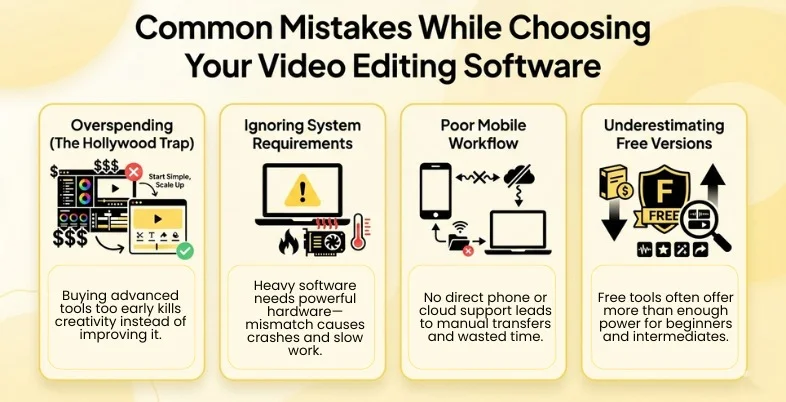
The video editing software selection is one of the investments in terms of finances and time spent on learning. The following are the most common pitfalls that should be looked out for:
- Overspending: This is called “The Hollywood Trap”. The new users purchase Premiere Pro or DaVinci Resolve Studio because they believe that it will improve their videos. But the reality is they are the one of the most complex software that tends to kill creativity in such cases. These tools are excessive in case you only have simple tasks like cutting family videos. One should keep their preferences simple when they are starting.
- Ignoring System Requirements: Editors like the DaVinci Resolve demands for a powerful GPU. In a regular office laptop, its installation will lead to consistent collapses and long term hardware damage. It’s a must to always match the software to the hardware.
- Mobile Workflow: There are numerous creators who shoot using phones. Unless the software you have just purchased, for example Final cut Pro, can readily accept a recording of an Android phone or can connect with a cloud library then you will be going to transfer the files manually. This is a time consuming task that leads to frustration and creative block.
- Underestimating Free Version: It will not worth paying a subscription until you exhaust the free limit of editing software you are using. Software namely DaVinci Resolve and CapCut have free versions that are far superior in power to most of the paid programs which cut costs and help the beginners & intermediaries learn along the way without losing financially.
Tips to Improve Video Editing Performance and Workflow
- Proxy High Resolution Footage: The files of 4K or 8K videos are challenging even to the strongest computers. Proxy mode is found on most editing programs, wherein the editing programs will construct reduced resolution versions of the files. When exporting the program will automatically substitute them with hi-res files.
- Learning J-K-L: Do not depend on your mouse in all the things. J, K, and L keys are used almost everywhere: in any editor J is used to rewind, K pauses, and L is used to forward. You can also add in and out I and O keys enabling you to edit the sound twice as fast.
- Organizing Bins: You should first sort your media into distinctly marked bins before dropping them onto the timeline. AX Roll, BX Roll, Audio, Music, SFX are some of the examples. Searching a disorganized system is no longer relevant when you’re in the middle or closer to finishing the edits. Finding individual items among the hundreds becomes almost impossible.
- Using Adjustment Layers: Add a Timeline Adjustment Layer in place of color grading individual clips, which adds to the overall sequence. The effects of the layer are attributed to all the layers beneath the layer saving processing power and time.
Conclusion
The perfect video editing software will not be the one packing most features but the one with the ability to respond to your creativity. CapCut is the pick for the widest range of editors as it is made to be easy to use and has a great number of features. DaVinci Resolve provides free, world-class training to inspire filmmakers and top ranking editors. Yet, automatically, Adobe Premiere Pro stands as the standard in the industry when it comes to a professional for the sole reason that one can create an animation from scratch even if it’s not provided in the app.
The best way to choose your video editing software is to start creating. Using the free versions and free trials help you decide which software would suit your needs the best and help you save costs if you make the wrong pick.
The modern AI devices have eliminated the level of technicality required in certain simple tasks. It does not matter if you have a Mac Studio that costs 3000 dollars or a two year old Android phone, you could relay a story around the world. One could get the tools, find out shortcuts and work along with AI to bring their vision to life.
Frequently Asked Questions (FAQs)
1. What is the Most User-Friendly Software at Present?
The most user-friendly are CapCut and Wondershare Filmora. They are developed for convenience with drag and drop features and they use AI to automate some hard processes such as audio syncing or screen removals. These two video editing software are allowing beginners to produce professionalized videos immediately.
2. Does there Exist any High Performing Video Editing Software without Subscription Based Pricing Model?
Yes. The free version of DaVinci Resolve (or a one-time purchase), Final Cut Pro (one-time), and LumaFusion (one-time), are all great professional apps that do not insist on a monthly service. Shotcut is also a decent open source alternative making it free.
3. Which Software is the Most Appropriate to Edit the Vertical Video to use on Tik Tok and Reels?
CapCut is the market leader as it has direct access to the trend library of TikTok and has specialized AI tools. InShot comes in second and even more in case you want to do an editing fast and easy using a phone.
4. Is it Possible to Edit 4K Video Using a Regular Home Laptop?
It depends on the software. Both Filmora and PowerDirector will utilize proxy workflows that can operate on the middle range laptops without any issues. The large-scale programs such as Premiere Pro and DaVinci Resolve typically require their own display card to cut 4K without issues which cannot run without crashes on a home laptop.
5. Does AI Eliminate the Necessity to have a Human Editor?
No. AI does grunt work, which includes but is not limited to the tasks of transcribing, noisesome reductions, and primitive rough cuts. Creative storytelling, timing, humor and emotional appeal still cannot be recreated by AI.
6. What is Considered to be the Most Appropriate Video Editing Software in Editing Podcasts and Interviews?
The best option for a lot of dialogue is Descript. Video editing, such as editing the transcript of the audio, can be done individually with a Word file, saving hours over the old fashioned waveform editing.
7. Is there Any Video Editing Software Which Does not Add any Watermarks on my Videos?
Yes. DaVinci Resolve (free version), Shotcut and the desktop edition of CapCut do not place watermarks on their video exports. Watermarks are frequently introduced in mobile applications either by watching an advertisement or by paying.